













Follow these steps to connect your Gr4vy account to Chargeblast
- Navigate to the Gr4vy integrations tab on Chargeblast here
Select Merchant or Connect, then enter your Merchant Account ID and API Private Key
Enable the toggle and click Save Changes
How to get the credentials
- Log in to your Gr4vy dashboard
- For your Merchant Account ID, click the Settings icon in the top bar, then find your store in the merchant account list. The short ID next to it is your Merchant Account ID (defaults to "default" if you only have one account)
To create a new API Private Key, go to Integrations → API Keys → Add an API Key:
- Name it "Chargeblast" so it's easy to recognize later
- Set to Full access. This allows us to action alerts and disputes
- Under Algorithm, choose ECDSA
- Under Merchants, select Access All merchants
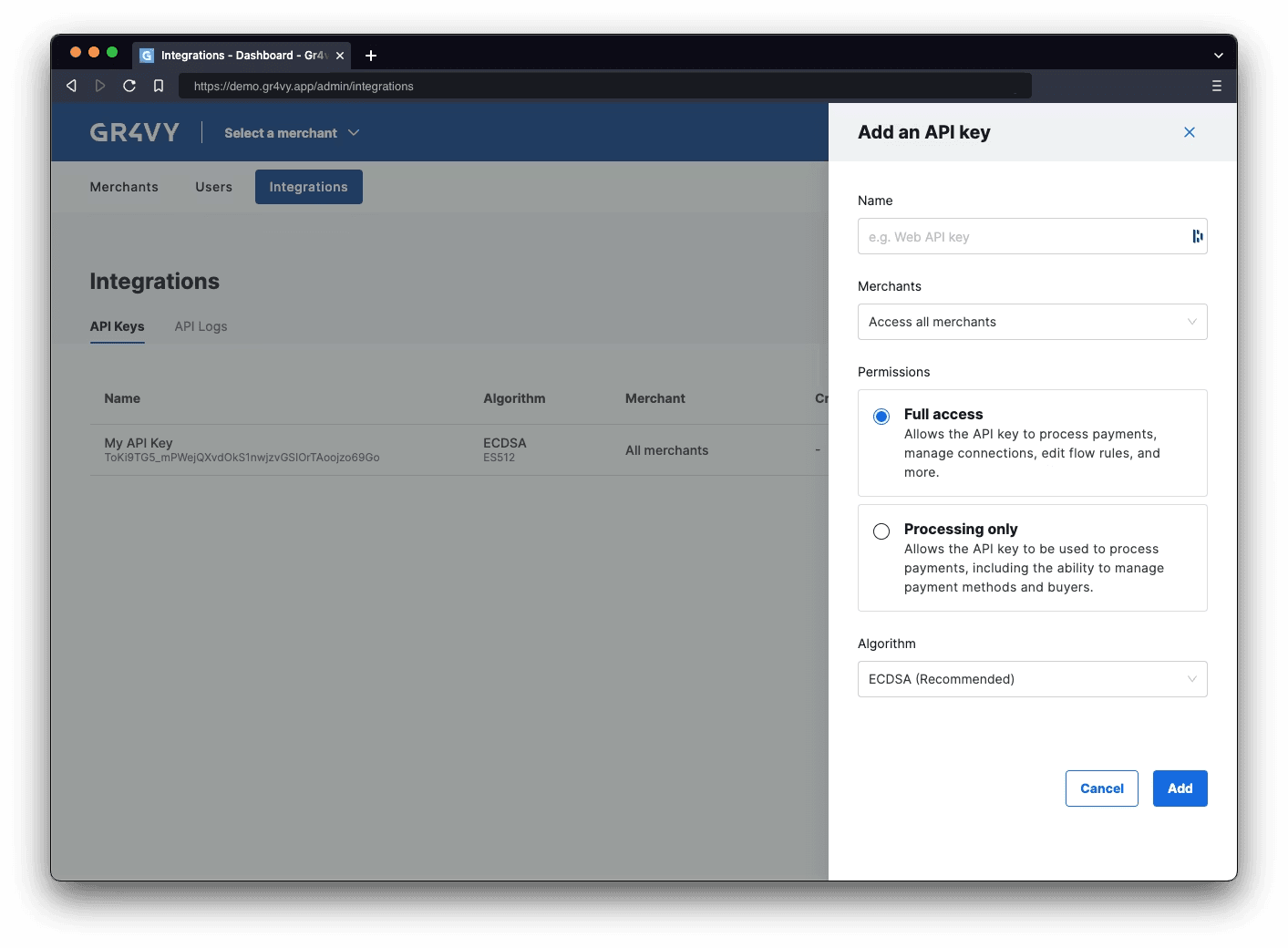
- Click Add and copy it immediately since Gr4vy only shows it once
- Include the
-----BEGIN PRIVATE KEY-----and-----END PRIVATE KEY-----lines
Pasting only the text between those lines can silently break authentication—it may show as “connected” while not pulling any data.
Gr4vy generates the key pair and provides the private key once, when the key is created. Store the private key securely, as it cannot be retrieved again.
Tags
paymentsgr4vy
Was this article helpful?
Help us improve our documentation