













Follow these steps to connect your Braintree account to Chargeblast
- Navigate to the Braintree Integrations tab on Chargeblast here
- Enter your merchant_id, public_key and private_key
To retrieve these keys
- From the top right corner, click the user avatar and select My User
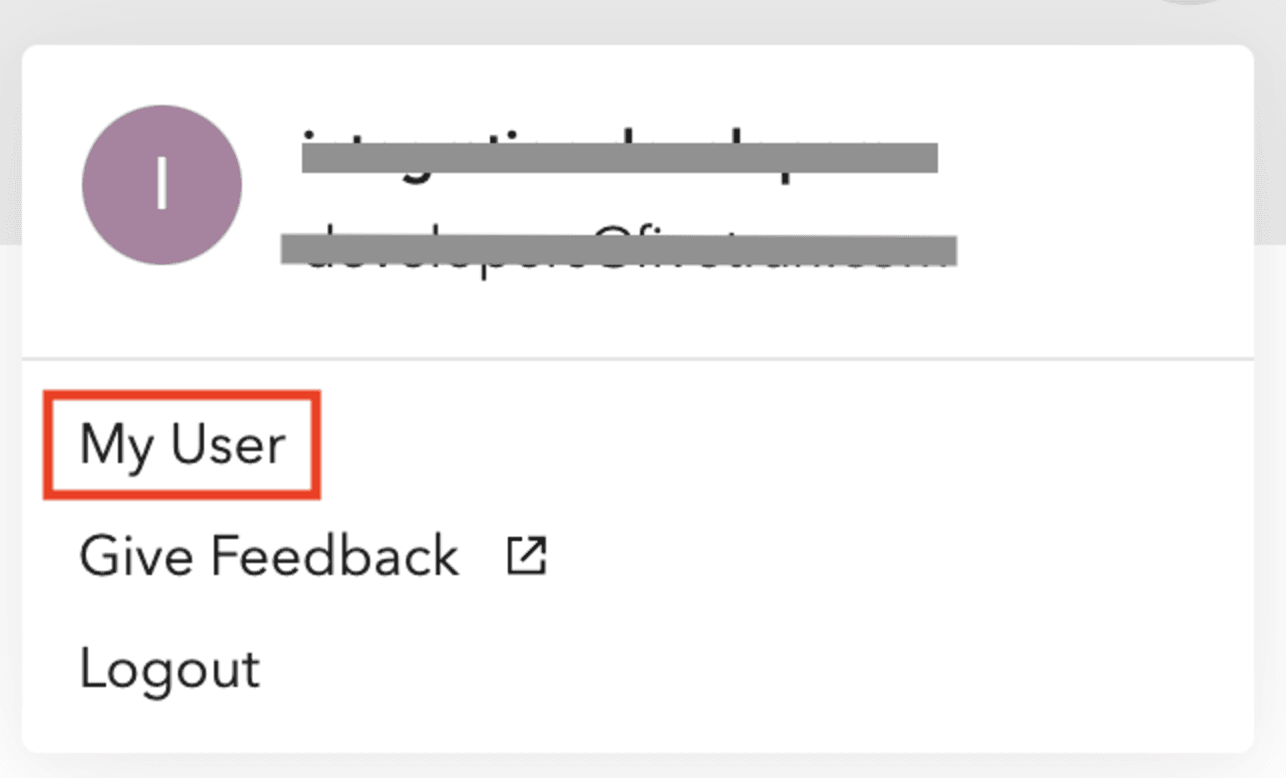
- On the User Settings page, scroll down to the API Keys, Tokenization Keys, Encryption Keys section and click View Authorizations
- On the API Keys page, you can either choose an existing API key or generate a new one by clicking + Generate New API Key
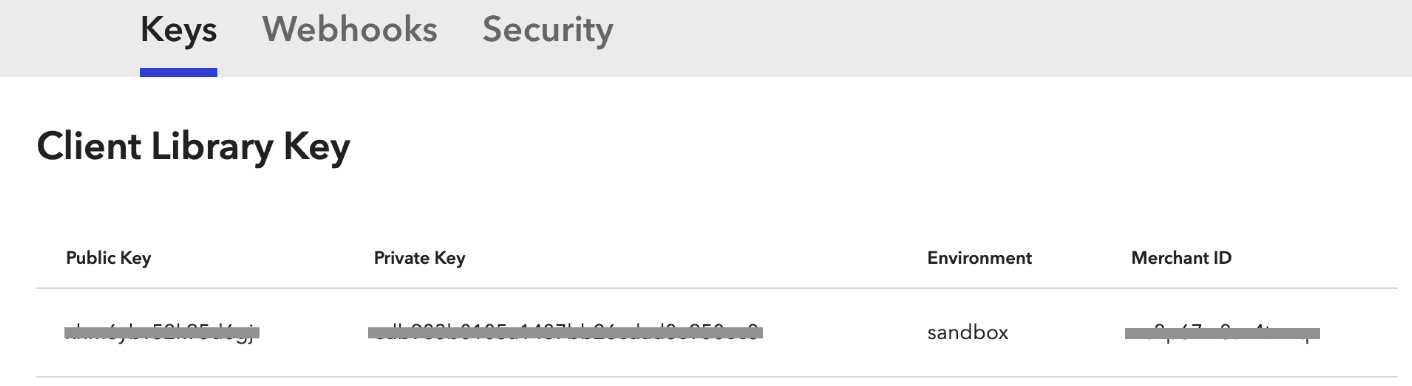
- Click View in the Private Key column for the key of your choice
- On the Client Library Key page, make a note of the Public Key, Private Key, and Merchant ID
Scopes
- View Subscription Plans
- View Subscriptions
- Search Subscriptions
- Dispute Management
- Webhooks
- Read-Only Access
- View Address
- View Customers
- View Merchant Accounts
- View Payment Methods
- View/Write Transactions (for refunds)
- View Verifications
- Search Transactions
- Search Verifications
Tags
braintreeintegration
Was this article helpful?
Help us improve our documentation