













Follow these steps to connect your AptPay account to Chargeblast
- Navigate to the AptPay integrations tab on Chargeblast here
- Enter your API Key and Secret Key for each AptPay account you want to sync — Chargeblast requires one account per AptPay account
- Click Save Changes, then click Activate
Getting your API Key and Secret Key:
- Log in to the AptPayHub portal
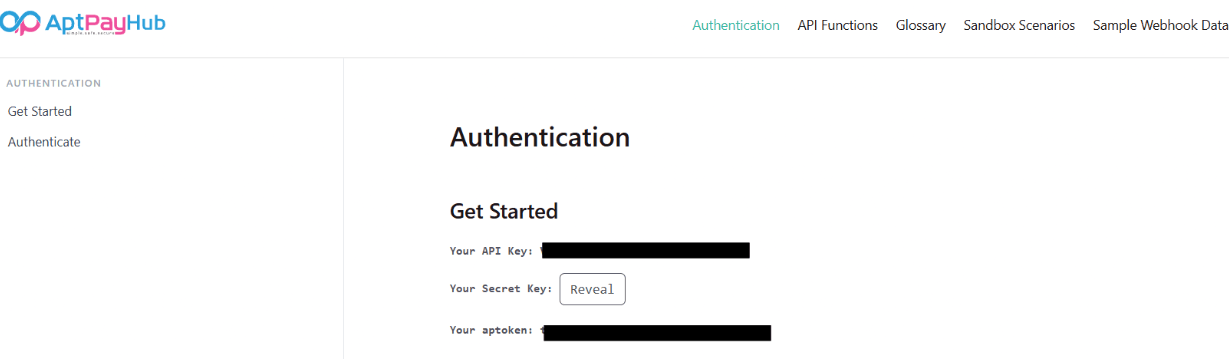
- Go to Authentication
- Make sure you're using your Production keys. Chargeblast needs production keys to sync real transactions and match them to alerts:
- Production keys are accepted only on the Production API Endpoint:
https://sec.aptpay.com/ - Sandbox keys are meant for testing and only work with the separate Sandbox endpoint (
https://sec.sandbox.aptpay.com/), so they won't authenticate against the live endpoint - Copy the value shown next to Your API Key
-
Click Reveal next to Your Secret Key to display it, then copy it
- Paste your API Key and Secret Key into the corresponding fields in Chargeblast. Never expose your Secret Key in client-side code or public repositories
Tags
aptpayintegration
Was this article helpful?
Help us improve our documentation